🐧 Linux Command Line Cheat Sheet: Essential Commands 🐧
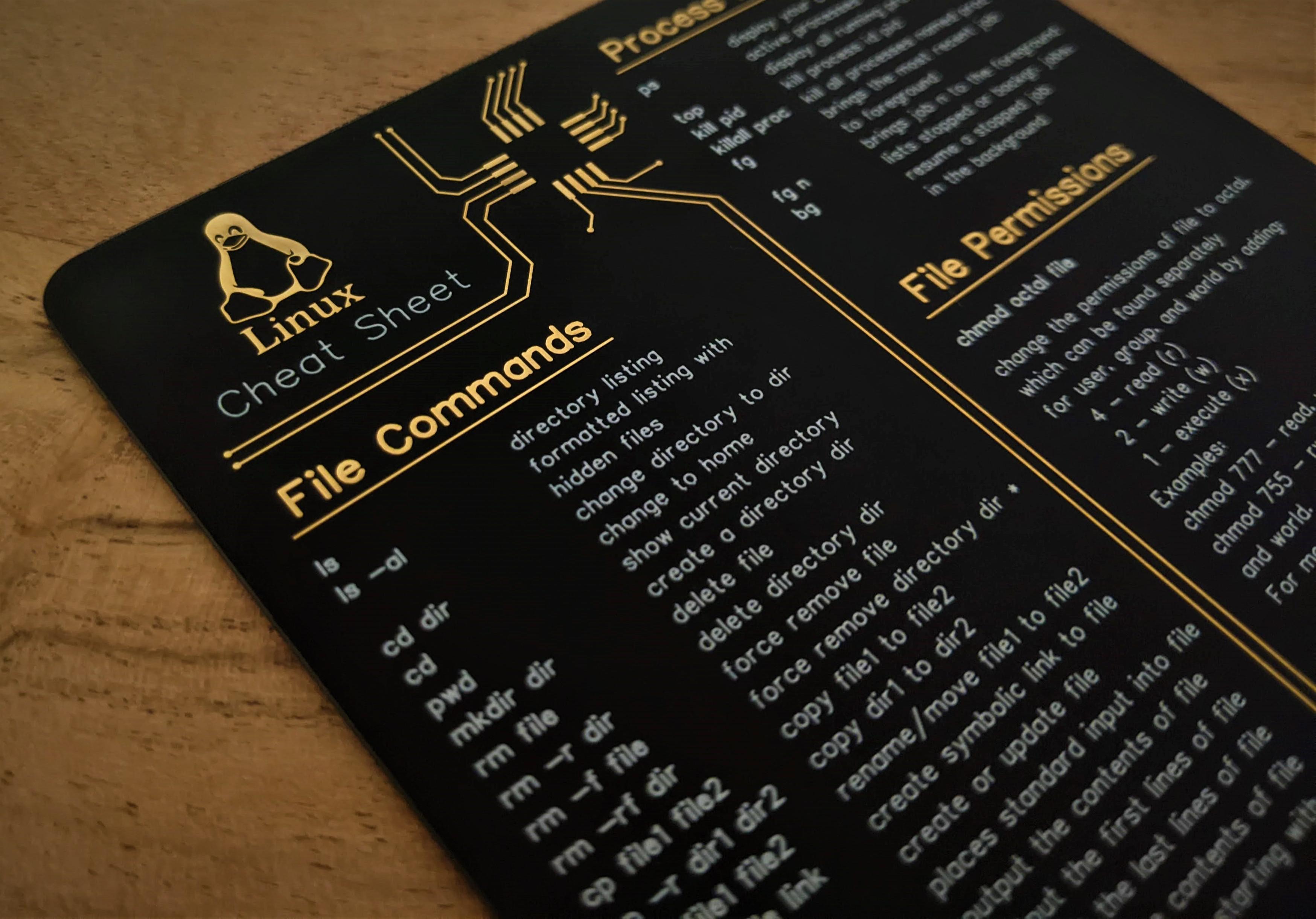
Welcome to the ultimate Linux command line cheat sheet! Whether you're a seasoned Linux user or just getting started, this handy reference guide will help you navigate the world of Linux commands with ease. 🚀
Table of Contents
Basic Commands 📝
pwd- Show current directory.ls- List files and directories.cd- Change directory.mkdir- Create a new directory.rm- Remove files or directories.cp- Copy files or directories.mv- Move files or directories.touch- Create an empty file.
System Information ℹ️
uname- Display system information.top- Display running processes.df- Show disk space usage.free- Display memory usage.uptime- Display system uptime.ps- Display detailed process information.
Package Management 📦
apt- Advanced Package Tool (Debian/Ubuntu).yum- Package manager (CentOS/RHEL).dnf- Next-generation package manager.pacman- Package manager (Arch Linux).snap- Package management (Snapcraft).
Networking 🌐
ifconfig- Display network interfaces.ping- Send ICMP echo requests.netstat- Network statistics.ssh- Securely access remote systems.wget- Download files from the web.
User Management 👤
useradd- Add a new user.passwd- Change user password.su- Switch user.sudo- Execute commands with superuser privileges.usermod- Modify user properties.
File Operations 📁🔧
ls -al: Lists all files - including hidden ones - with permissions 👀📝pwd: Displays the present working directory path 🗺️mkdir 'pink': Creates a new directory named 'pink' 📂rm file_name: Removes a file 🗑️rm -f filename: Forcefully removes a file 💥rm -r directory_name: Removes a directory recursively 🌪️rm -rf directory_name: Removes a directory forcefully and recursively 🌪️💥cp file1 file2: Copies contents of file1 to file2 📂➡️📂cp -r dir1 dir2: Recursively copies dir1 to dir2 📂➡️📂mv file1 file2: Renames file1 to file2 ✨
Links and Text Manipulation 🖇️📝
ln -s /path/to/file_name link_name: Creates a symbolic link to file_name 🖇️touch file_name: Creates a new file 📄cat > file_name: Places standard input into a file ✍️more file_name: Outputs contents of a file step by step 📄➡️head file_name: Displays the first 10 lines of a file 📝🔝tail file_name: Displays the last 10 lines of a file 📝🔚File Transfer Commands📜
#scp file1.txt server2/tmp Securely copy file1.txt to server2 in /tmp directory
#rsync -a /home/apps /backup/ Synchronize contents in /home/apps directory with /backup directory
Disk Usage Commands📜
#df -h Displays free space on mounted systems
#df -i Displays free inodes on filesystems
#fdisk -l Shows disk partitions, sizes, and types
#du -sh Displays disk usage in the current directory in a human-readable format
#findmnt Displays target mount point for all filesystems
#mount device-path mount-pointMount a device
Certainly! Here's a comprehensive explanation of the Linux commands you provided along with their functionalities and usage:
🖥️ Linux System Information Commands 🖥️
uname: Displays Linux system information, including the kernel version, network hostname, and more.uname -r: Displays the kernel release information.uptime: Displays how long the system has been running.hostname: Shows the system hostname.hostname -i: Displays the IP address of the system.last reboot: Shows the system reboot history.date: Displays the current system date and time.whoami: Displays the username of the currently logged-in user.finger username: Displays detailed information about the specified user.
Thanks for reading✨
Hope you find this useful. Let me know your thoughts in the comment section and don’t forget to clap if you found the article helpful. To get notified, Do follow