📝 Exploring File Permissions and ACLs in Linux 🐧
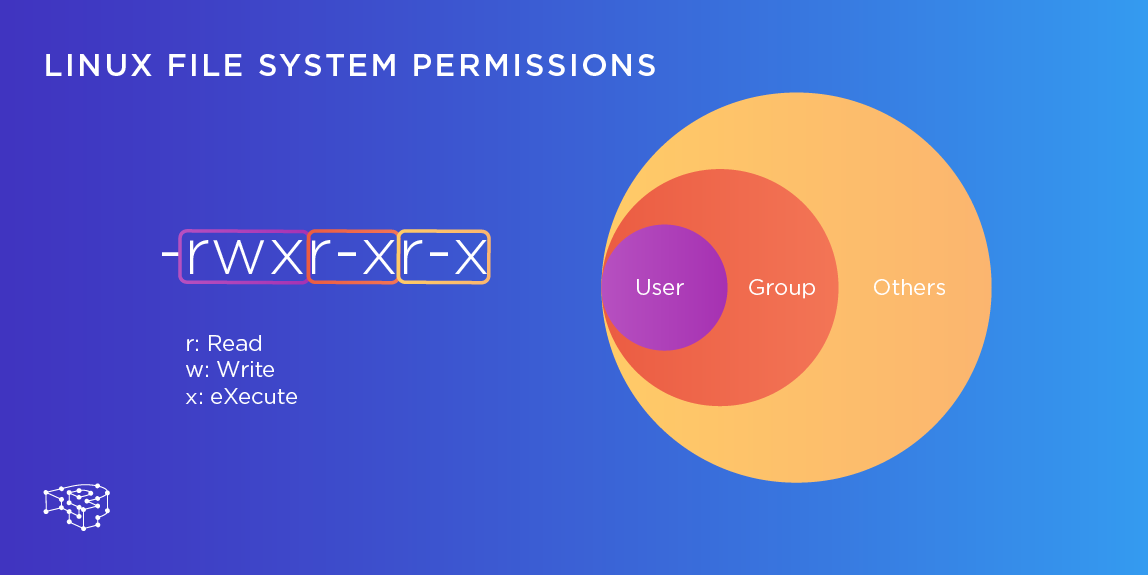
In the realm of Linux, understanding file permissions and ACLs is crucial for maintaining security and controlling access to files. Let's embark on a journey to discover how to create files, decode permissions, and embrace Advanced ACLs. 🚀
📄 Part 1: Creating a Simple File
Open a terminal.
Navigate to your chosen directory using
cd.Use
touchto create a file, e.g.,touch my_file.txt.Execute
ls -ltrto see detailed file info.
You'll see something like this:
-rw-r--r-- 1 username groupname 0 Aug 3 10:00 my_file.txt
🔒 Part 2: Understanding File Permissions
Navigating file permissions in Linux doesn't have to be complex! Let's break it down using emojis and bullet points to make it super easy to understand. 🌟
🤔 What Are File Permissions?
File permissions in Linux are like locks on doors. They decide who can access files and how. Here's how they work:
You have different levels of access:
User (Owner)
Group
Others
💼 Viewing Linux File Permissions
To peek at permissions, use the ls -l command. It reveals metadata, including permissions:
Example:
drwxr-xr-x. 4 root root 68 Jun 13 20:25 tunedBreakdown:
User:
rwxGroup:
r-xOthers:
r-x
🔍 Reading File Permissions
Think of permissions like this:
r(read) 📖w(write) ✍️x(execute) 🏃
For instance: rw- means read and write permissions, but no execute.
⚙️ How Permissions Work
Checks user: Own the file? Your permissions apply.
If not, checks group: Belong to the group that owns the file? Group permissions count.
If neither, others: "Others" permissions are for everyone else.
🔢 Octal Values Simplify Permissions
r(read) = 4w(write) = 2x(execute) = 1
In numeric mode, permissions are a three-digit value, e.g., 744:
Owner:
rwx= 4 + 2 + 1 = 7Group:
r--= 4 + 0 + 0 = 4Others:
r--= 4 + 0 + 0 = 4
🔒 Permissions in Action
r(read): Access file content, and view it.w(write): Modify file content.x(execute): Run files, like programs.
📁 Directory Permissions
Directories have permissions too:
r(read): See contents (files) inside.w(write): Add or remove files.x(execute): Access directory info.
🔧 Changing File Permissions
Use chmod command:
Numeric mode:
chmod 744 file.txtSymbolic mode:
chmod u+rwx file.txt
🔑 Special Permissions
Extra powers beyond standard permissions:
SUID: File runs as owner.
SGID: File runs as group owner.
Sticky Bit: Only owner can delete files.

🔑 Part 3: Access Control Lists (ACLs)
Standard file permissions are sometimes insufficient for managing access in complex scenarios. This is where ACLs come into play. ACLs allow you to define permissions for specific users or groups beyond the traditional owner, group, and others. The getfacl and setfacl commands are used to work with ACLs.
Using getfacl
The getfacl the command is used to display the ACL information for a file. For example:
getfacl my_file.txt
The output will show the ACL entries along with their permissions and the effective permissions.
Using setfacl
The setfacl the command is used to set ACLs on files. Its syntax is as follows:
setfacl -s user::perms,group::perms,other:perms,mask:perms,acl-entry-list filename
user::perms: Specifies file owner permissions.group::perms: Specifies file group permissions.other:perms: Specifies permissions for users other than the owner or group.mask:perms: Specifies maximum allowed permissions for users and groups.acl-entry-list: Specifies additional ACL entries for specific users and groups.
✨Examples of Using setfacl
Let's consider a couple of examples using the setfacl command:
- Setting ACL for
ch1.doc:
setfacl -s user::rw-,group::r--,other:---,mask:rw-,user:george:rw- ch1.doc
- Setting ACL for
ch2.doc:
setfacl -s u::7,g::4,o:0,m:4,u:george:7 ch2.doc
📚 Conclusion
Mastering file permissions and ACLs is pivotal for Linux security. Now you're equipped to create files, decode permissions, and leverage ACLs to fine-tune access control. Remember, precise permissions are the key to a secure Linux environment. 💪🔐